
CuppMedia · Pittsburgh
Websites, software, listings, and payments.
Proof
See it working.
Switch between software, listings, and payments.
Contractor software · HawkOS
From lead to signed quote.
Six steps, all live today.
Diagram — not a product screenshot
Lead lands
The form comes in, tagged by service type. A repeat from the same phone is deduplicated.
Scored
Rules bucket it emergency, high, or normal. Keyword and photo-count rules, not AI.
Texted
You get a text and an email within seconds, with a suggested call opener. The lead enters a fifteen-stage pipeline.
Quoted
Trace the roof, driveway, fence, or gutter on licensed aerial imagery. Area and pitch feed an itemized quote from your price book.
Signed
The customer opens a secure link and types their name to accept. Name, IP, and time are kept as the record.
Tracked
Day 3, 7, and 14 follow-ups are drafted and queued. You click send. Review requests are prepared at completion.
The rail ends here. HawkOS stops at the signed quote. Invoicing and payments there are roadmap, not live.
Leads, quotes, and follow-up in one database. Card processing is set up alongside HawkOS, not inside it.
AI Studio · real output
Before and after, from one photo.
Drag the handle. Below it, the tool that made it.
CuppMedia AI Studio · real output


CuppMedia AI Studio · real screen capture
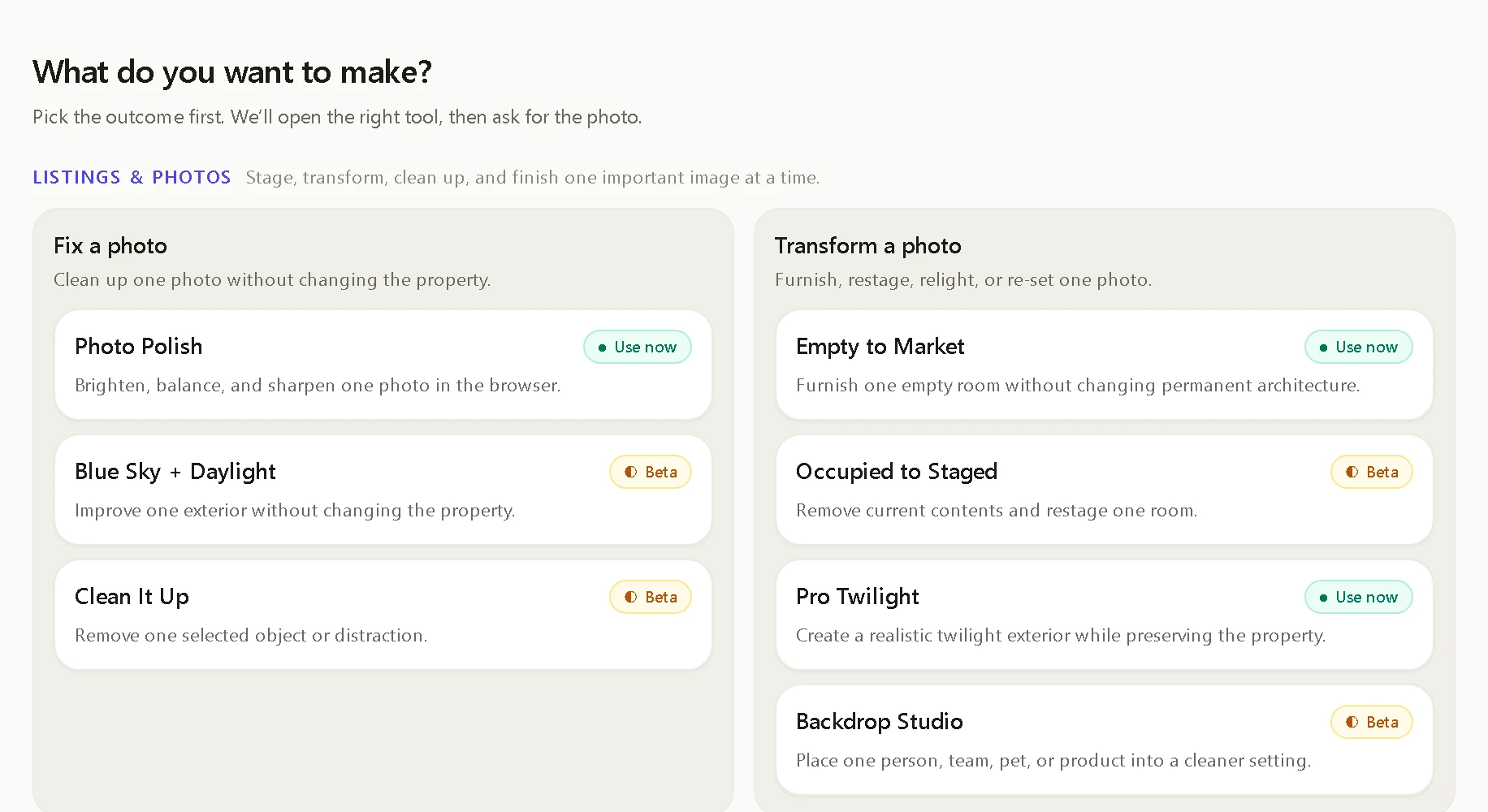
CuppMedia AI Studio · real screen capture
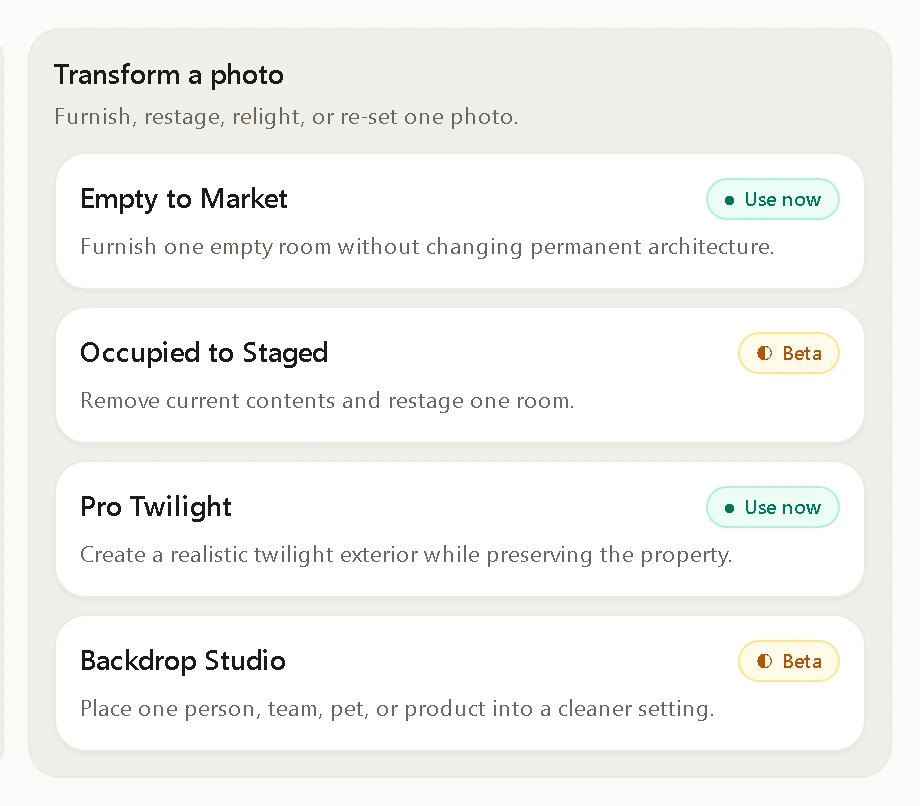
CuppMedia AI Studio · real screen capture
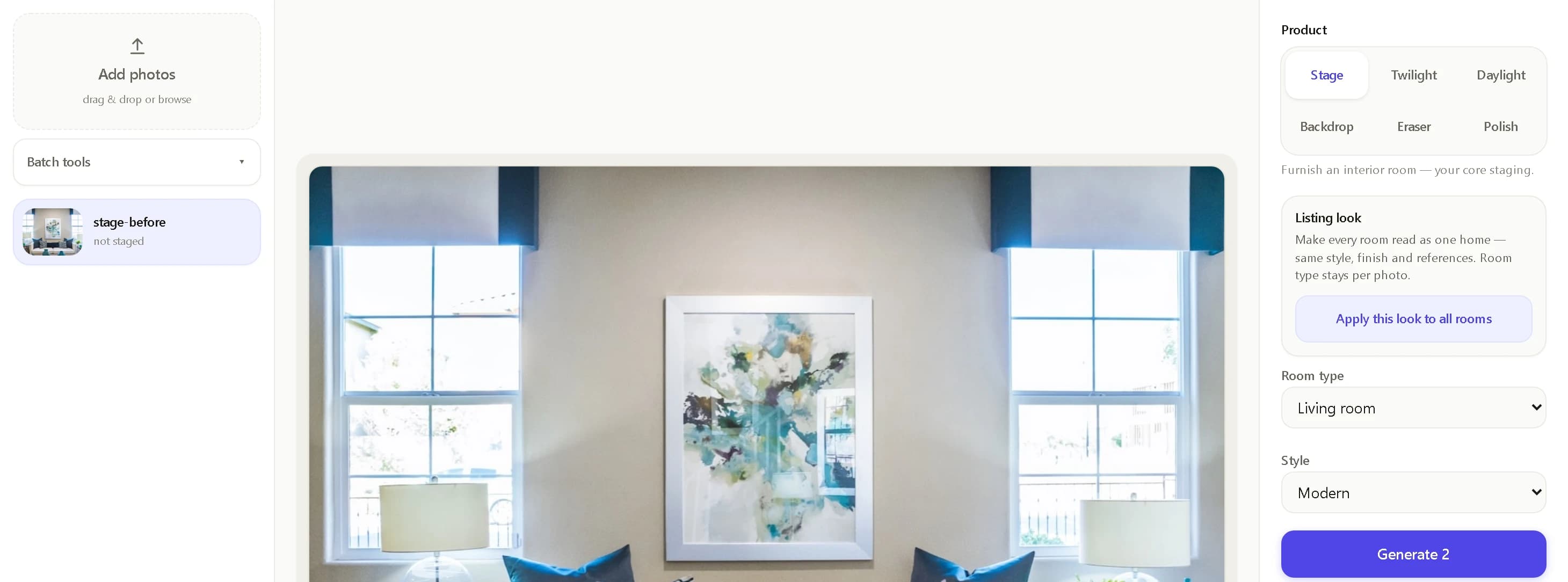
CuppMedia AI Studio · real screen capture
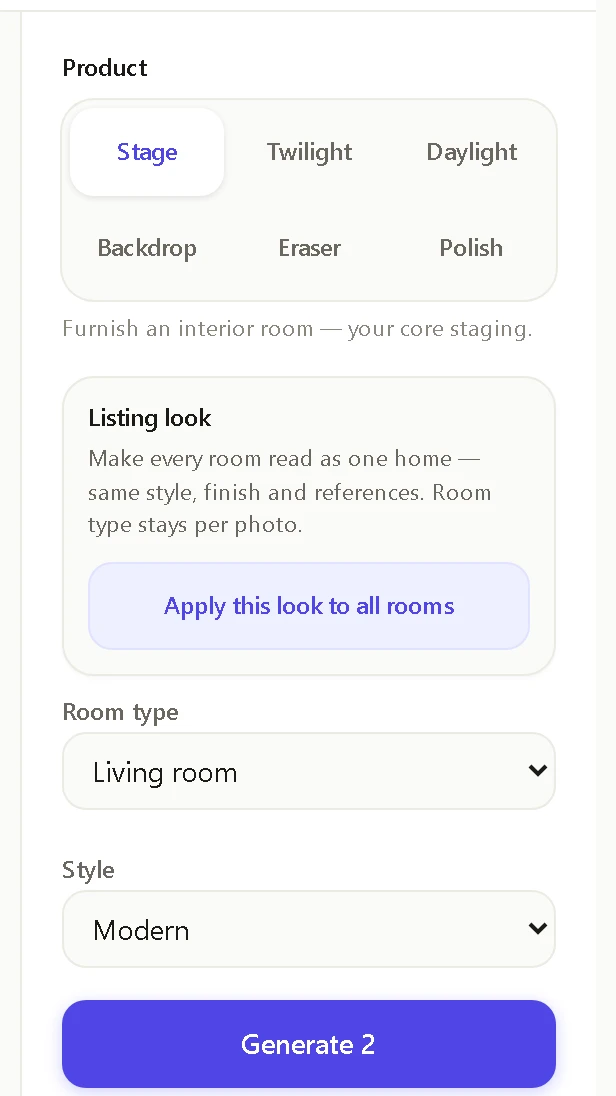
Payments · PayAnywhere, set up locally
Take the card in person or remotely.
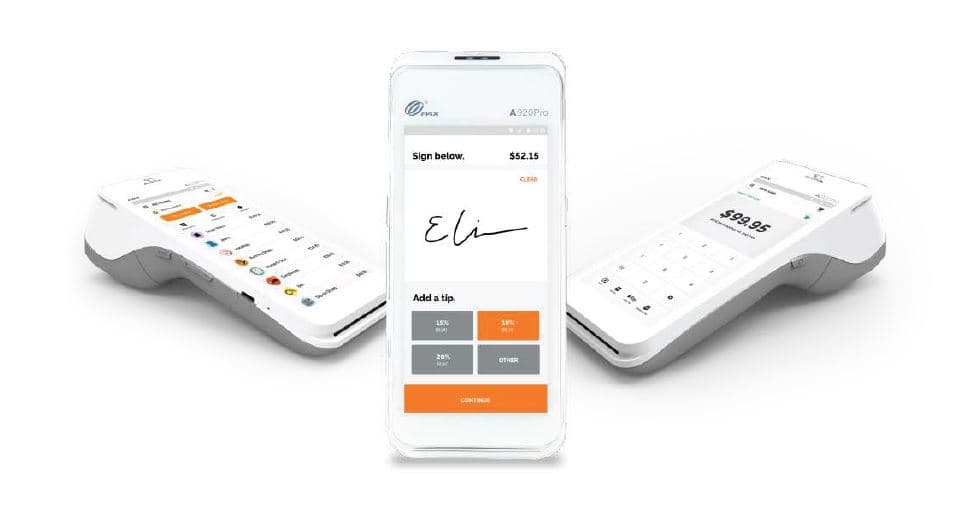
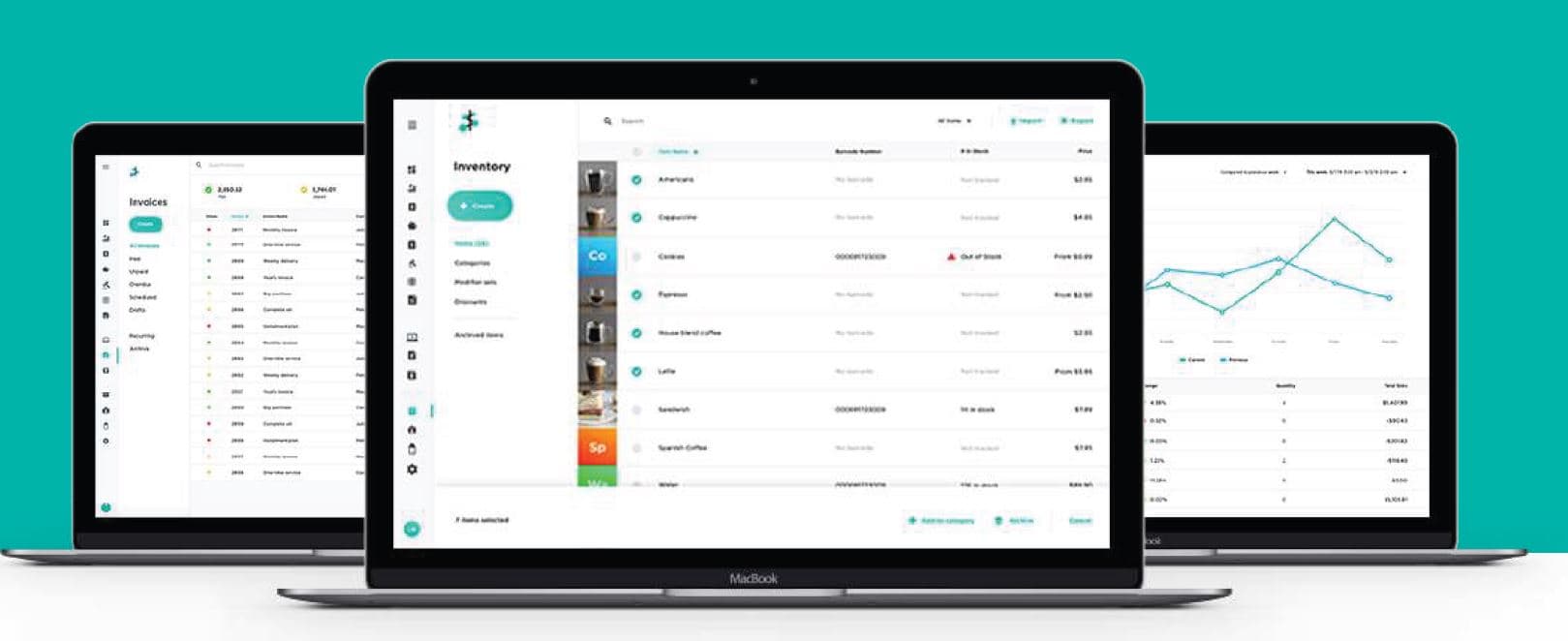
The hardware and dashboard are PayAnywhere's. We set them up.
PayAnywhere · provider hardware
PayAnywhere · provider software
- Take it face-to-face, or collect remotely by invoice or link.
- See transactions, deposits, invoices, and reporting in Payments Hub.
- Get setup and support from a local authorised PayAnywhere agent.
For med spas, the card work plugs into SignatureOS booking and checkout. On a website, we connect an approved hosted payment link or invoice.